Account settings
Manage your Amusebit account settings: update your name, change your password, reset a forgotten password, and opt in or out of product update emails.
Your account settings cover your personal details and sign-in. Open them from the menu under your venue name in the top right, then choose Account.
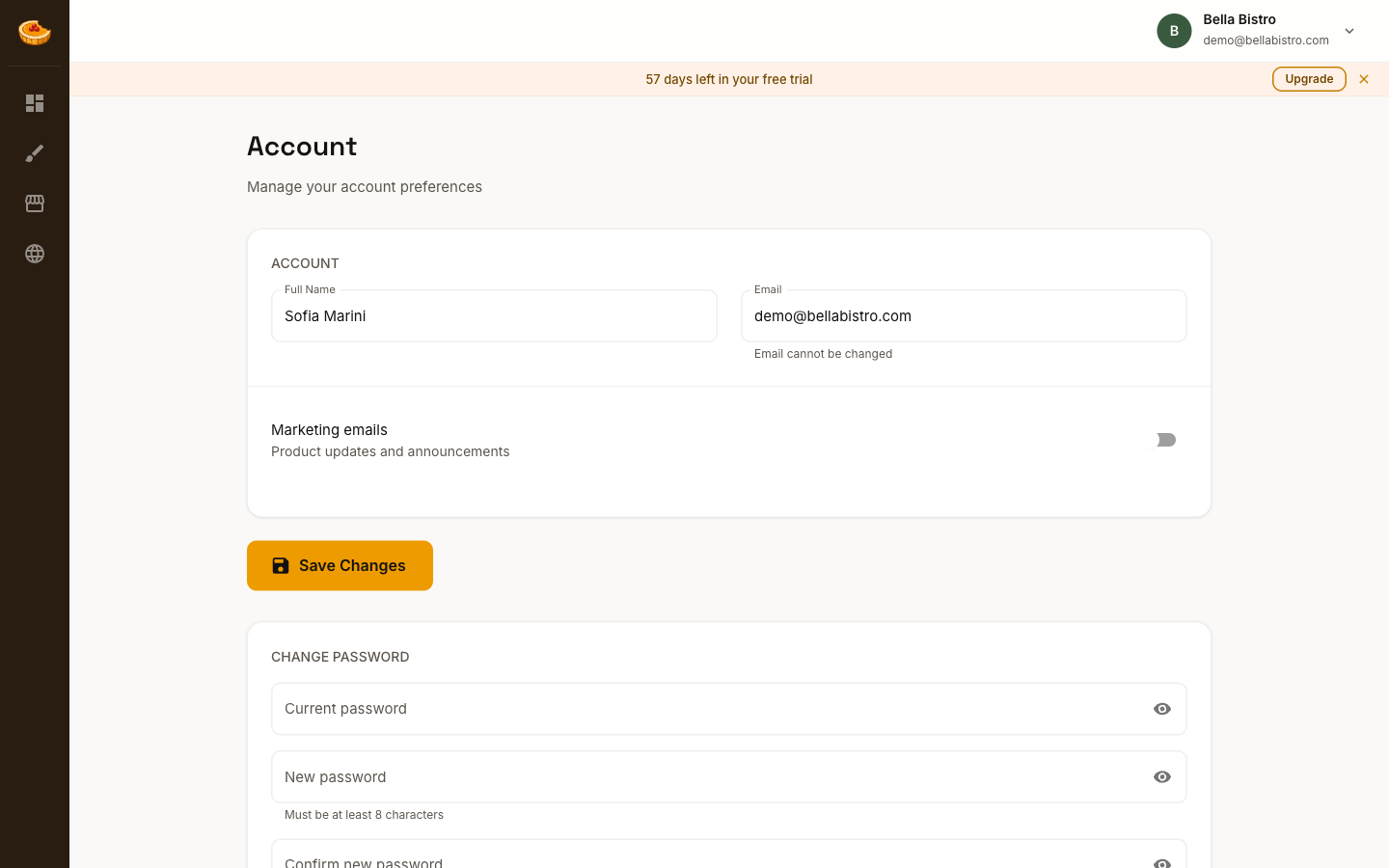
Your details
- Full name: your name on the account. Update it and click Save Changes.
- Email: the address you sign in with. It's shown here but can't be changed.
- Product updates: a toggle to opt in or out of occasional product news and tips.
Change your password
In the Change Password section, enter your current password and a new one, then save. New passwords need at least 8 characters.
If you've forgotten your current password, sign out and use the Forgot password? link on the login page to reset it instead.
Looking for your venue's public details (name, logo, footer), its currency, or its languages? Those live on the Venue page: see Venue identity.