Menu items
Add dishes and drinks to your menu with a name, description, and price. Reorder items, hide a dish that's temporarily unavailable, or delete it for good.
Items are the individual dishes and drinks on your menu. Each one lives inside a section and has a name, an optional description, and a price. You add and edit items in the Studio editor's Content mode.
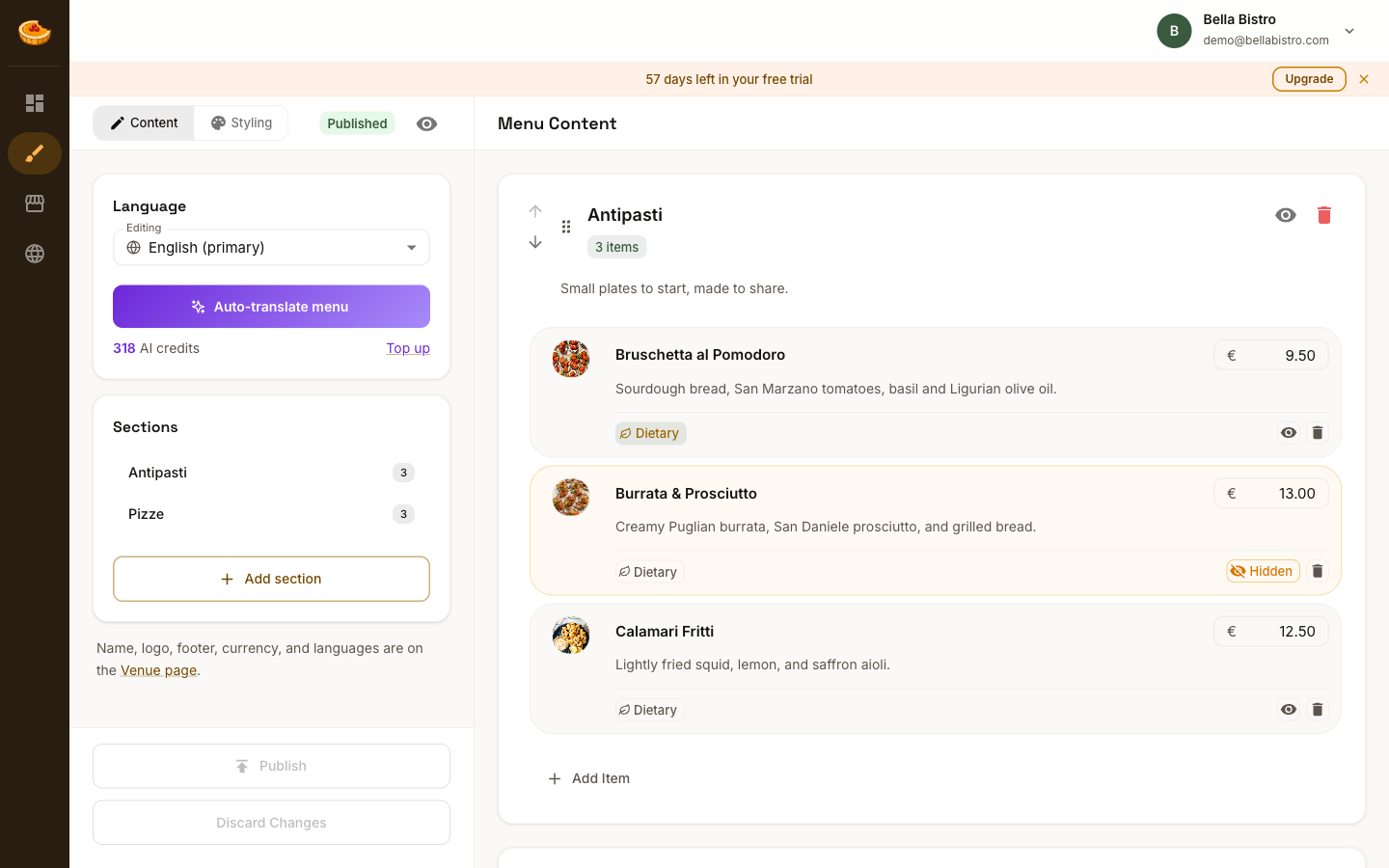
Add an item
Inside a section, click Add Item. A new item appears, ready for you to fill in.
Fill in the details
- Name: the dish or drink (for example, "Margherita").
- Description: an optional line beneath the name, great for ingredients or notes.
- Price: shown in your venue's currency. See Prices & currency for currency and formatting options.
Your changes save automatically as you type.
Each item can also carry a photo and its allergens, dietary badges and nutrition. If you publish in more than one language, the name and description are translated per language. See Menu languages.
Reorder items
Use the up and down arrows, or drag the handle, to reorder items within a section. They appear on your menu in this order.
Hide an item
Click the eye icon to hide an item without deleting it. Hidden items stay in your editor but don't appear on your published menu, which is useful when a dish is temporarily unavailable.
Delete an item
Click the trash icon to remove an item for good. If it's only off the menu for a while, hide it instead.