The Studio editor
The Studio editor is where you build and style your menu. Learn Content and Styling modes, autosave and drafts, live preview, and how to publish.
The Studio is where you build and style your menu. Open it from the dashboard with Edit Menu, or click Studio in the sidebar.
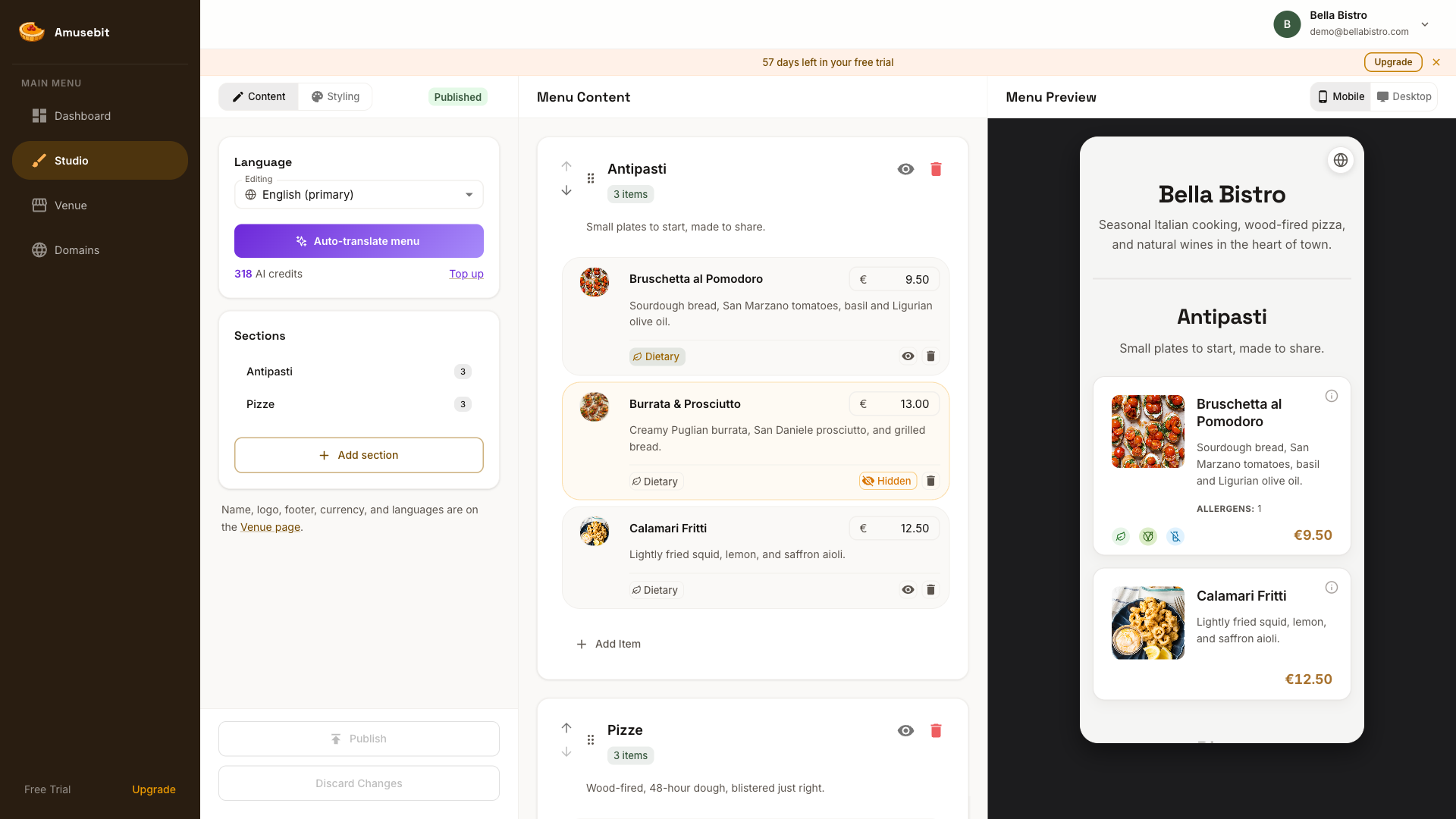
Two modes
The Studio has two modes, switched with the toggle at the top:
- Content holds your menu itself: its sections and items.
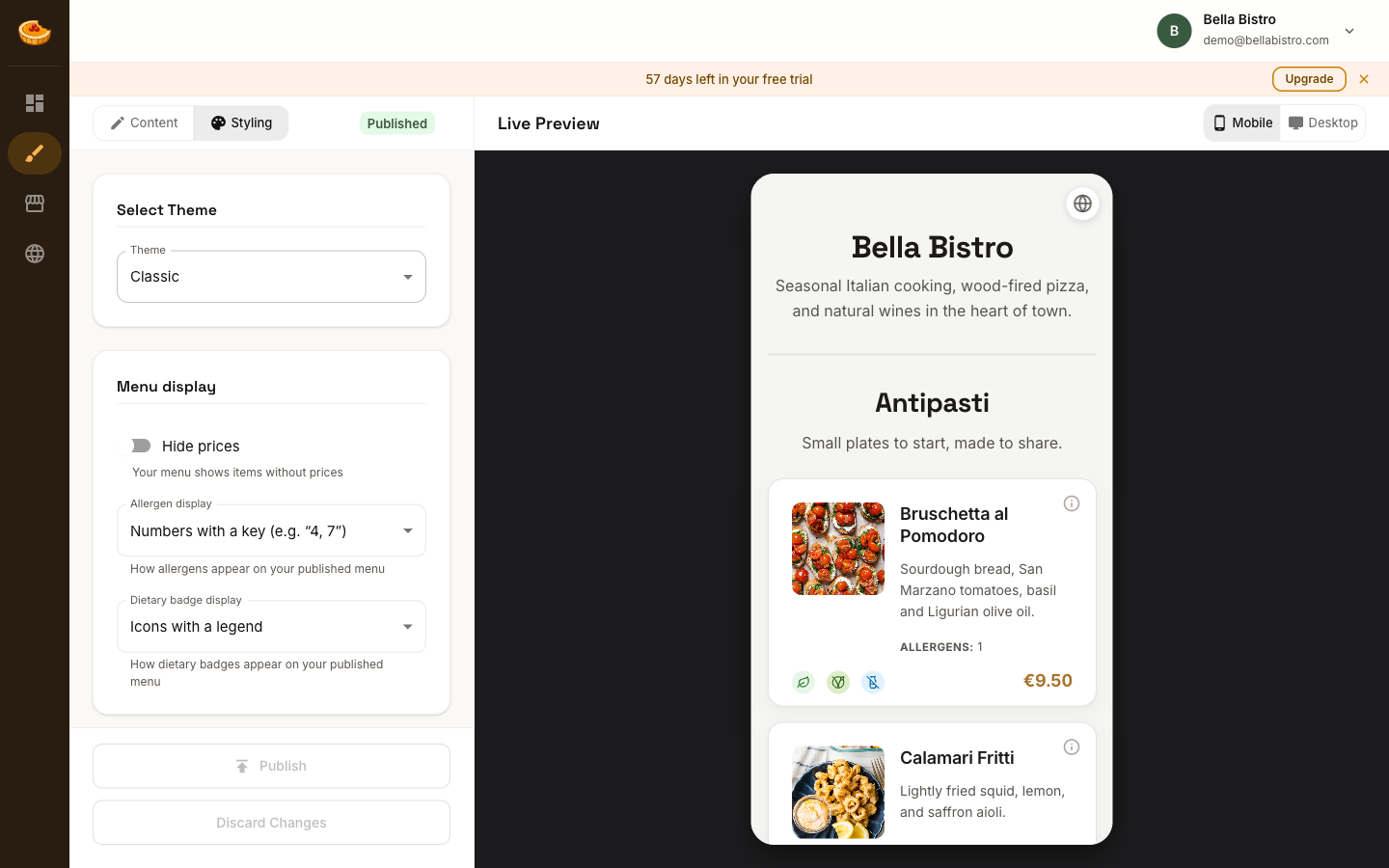
- Styling covers the look: theme, colors, and fonts, plus how prices, allergens, and dietary badges are shown.
Your venue's name, logo, footer, currency, and languages live on their own page. Click Venue in the sidebar, or see Venue identity.
Content mode
In Content mode, the left panel lists your sections, with an Add section button, and the Menu Content panel is where you build out sections and items. On wide screens a third Menu Preview pane shows your menu as you edit, with a Mobile/Desktop toggle. On narrower screens, open it with the preview button in the toolbar.
If you publish in more than one language, a Language card at the top of the left panel picks the language you're editing and holds the Auto-translate button. On a phone, both sit above your sections instead. The detailed guides:
Styling mode
In Styling mode, you choose a theme and adjust its colors and fonts, with a live preview beside you. The Menu display card, under the theme, sets how prices, allergens, and dietary badges appear in every theme. See:
- Themes
- Colors & fonts
- Prices & currency (hiding prices)
- Dietary, allergens & nutrition (display options)
Autosave and drafts
Your changes save automatically as you work. While you're editing, your menu carries a Draft badge: nothing you change is visible to guests until you publish. Changes you make on the Venue page are drafts too, and go live with the same Publish button.
Preview and publish
The live preview shows exactly how your menu will look, and you can switch it between Mobile and Desktop. When you're ready:
- Publish makes your current draft live, including any unpublished changes from the Venue page.
- Discard Changes throws away your unpublished menu content and styling and reverts them to the last published version. Unpublished Venue page changes stay. Discard those on the Venue page.
For the full publishing flow, see Publishing your menu.