Your menu link
Find your menu link on the dashboard, share it on Google, social media, and your website, and download a QR code for your menu as a PNG or SVG file.
Every published menu lives at its own web address, so you can share it anywhere your guests are.
Your address
Your menu's link is built from your venue handle:
https://your-venue.amusebit.site
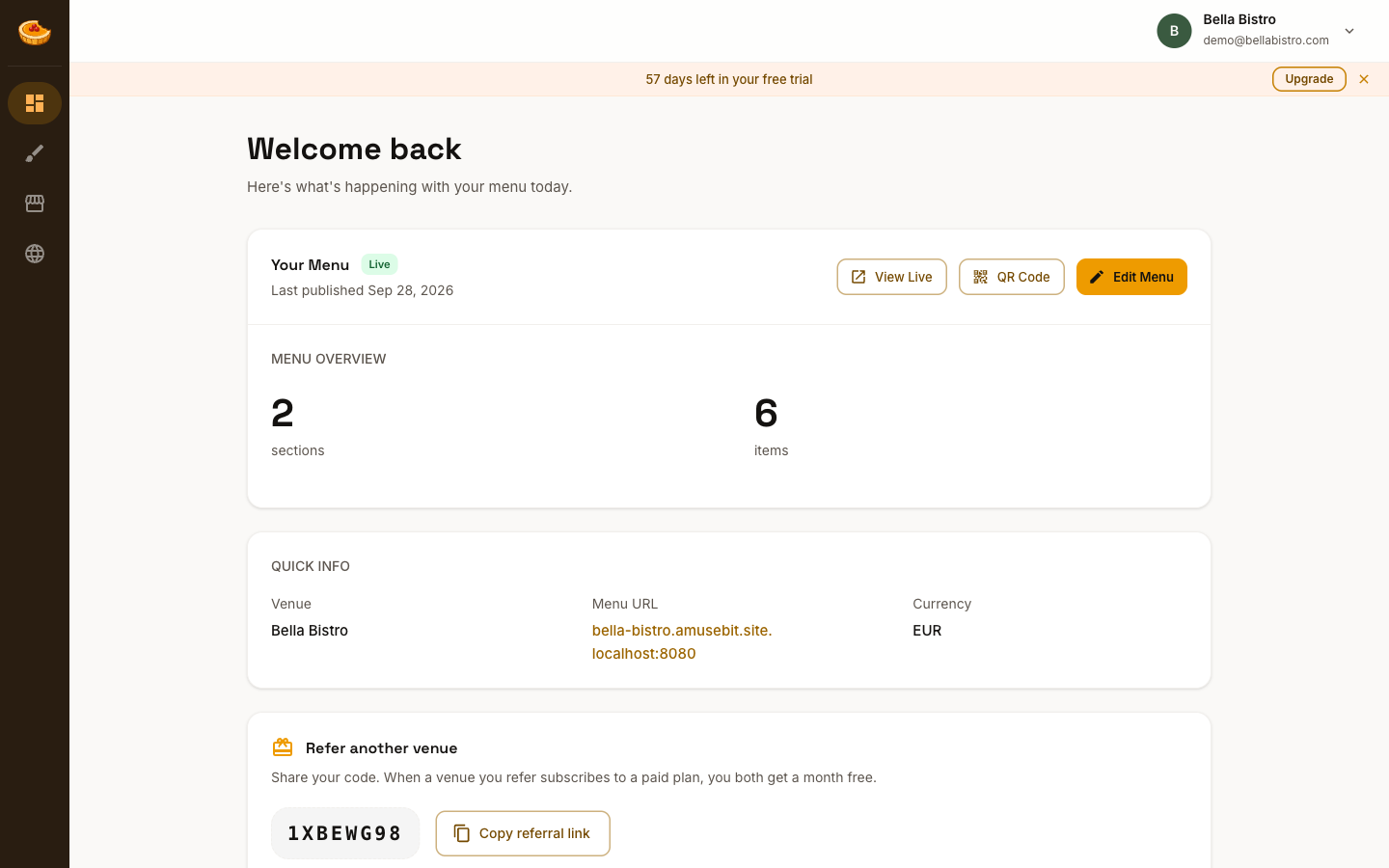
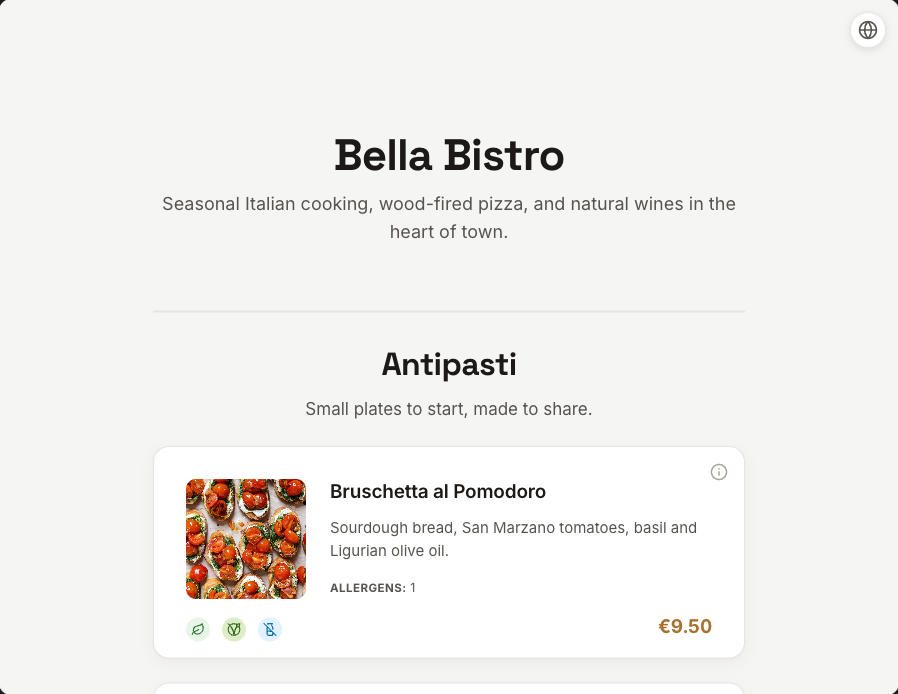
For example, Bella Bistro's menu is at bella-bistro.amusebit.site. You chose the handle when you created your venue, and the link stays the same even as you update your menu.
Finding your link
Your menu link is shown in the Quick Info section of your dashboard, under Menu URL.
Sharing it
Because it's a normal web link, you can put it wherever your guests will look:
- Your Google Business Profile and Google Maps listing
- Social media bios and posts
- Email signatures and newsletters
- Your website, as a "View menu" button
- A QR code on tables, windows, or receipts (see below)
Download a QR code
Amusebit makes a QR code for your menu link, so you don't need a separate QR tool. It's included on every plan.
- Open your Dashboard.
- In the Your Menu card, select QR Code (QR on a phone).
- Pick a format:
- PNG: a 1024 × 1024 pixel image. Use it for documents, social posts, and most home or office printers.
- SVG: a vector file that stays sharp at any size. Send this one to a print shop or designer.
The files are named after your venue handle, for example bella-bistro-menu-qr.png.
The QR code always points to your amusebit.site address. That address never changes, so printed codes keep working even if you edit your menu or add a custom domain later.
Print tip: Print the code at least 2 cm (about 1 inch) wide, and keep the white border around it. Scan a test print with your own phone before you print a full batch.
Want a branded address like menu.yourrestaurant.com instead? See Custom domain.